Framer is checking a new version of Blog Import, so its Marketplace page is offline for now. Need your blog moved before it's back? Email us and we'll help.
Moving a Squarespace blog to Framer without losing images or links
Moving the pages is the easy part; you rebuild them in Framer anyway. The blog is harder, because it is data: posts, dates, authors, categories, images, and URLs that other sites and Google already point to.
The short route: open Blog Import in the Framer Marketplace, our plugin that reads the Squarespace export, copies the images and adds the redirects. Your newest 25 posts import free. The rest of this page explains each step.
This is what we learned building an importer and testing it on real Squarespace exports from 2014 to 2026.
What Squarespace gives you
If you’re here because your renewal went up, check whether Core is enough first.
Squarespace has one export format, and it is WordPress’s. Open the Import & export panel, click Export, pick WordPress, and download an .xml file. The site has to be published and public; a trial site can’t export.
According to Squarespace’s own help page, the file contains:
- one blog page, with its posts and comments
- text and image blocks, and the text from other blocks
and leaves out:
- every blog after the first (each one needs its own export)
- drafts
- audio and product blocks (video blocks are in the file as YouTube or Vimeo links, and Blog Import turns them back into video blocks)
- the image files themselves
The last point is the one that bites. The file holds links to images on Squarespace’s servers, not the images. Squarespace warns that those links can stop working once you cancel. If you import the file and then close your Squarespace account, your posts can end up with broken images.
Three things in the file that trip up imports
We found these in real exports, not in Squarespace’s documentation:
- Dates from the far future. One export had posts dated in the year 146140482. A strict parser fails on the whole file because of four bad dates.
- URLs as paths. Post links look like
/blog/2014/6/10/my-post, without the domain. Tools that expect full URLs can’t build redirects from them. - Slugs with the date in them. The post slug is
2014/6/10/my-post. A Framer CMS slug is a single part of the address, so it has to becomemy-post.
Your options
By hand. For a handful of posts, copy each one into a Framer CMS collection. Download the images first and upload them in Framer. Add redirects in Framer under Site Settings, Hosting, Redirects (Framer Pro plan or higher). A wildcard rule such as /blog/* can cover many old addresses at once.
CSV. Framer’s own guide for WordPress describes converting the XML export to CSV with a tool or script and importing that into a collection. The same works for a Squarespace file, but images still point at Squarespace.
A plugin. Two on the Framer Marketplace read the Squarespace file directly:
- Squarespace Import by Adam Kansky: free for 25 posts, then $49 for one project or $99 unlimited.
- Blog Import (ours): free for your newest 25 posts; a license for the rest is $29 per project or $59 for any number, paid once. It also reads WordPress export files and live WordPress sites.
Squarespace Import or Blog Import compares the two point by point.
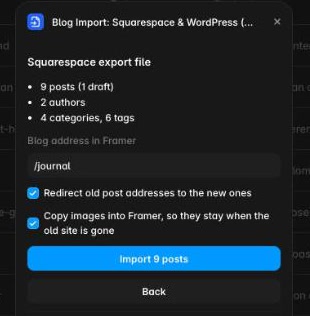
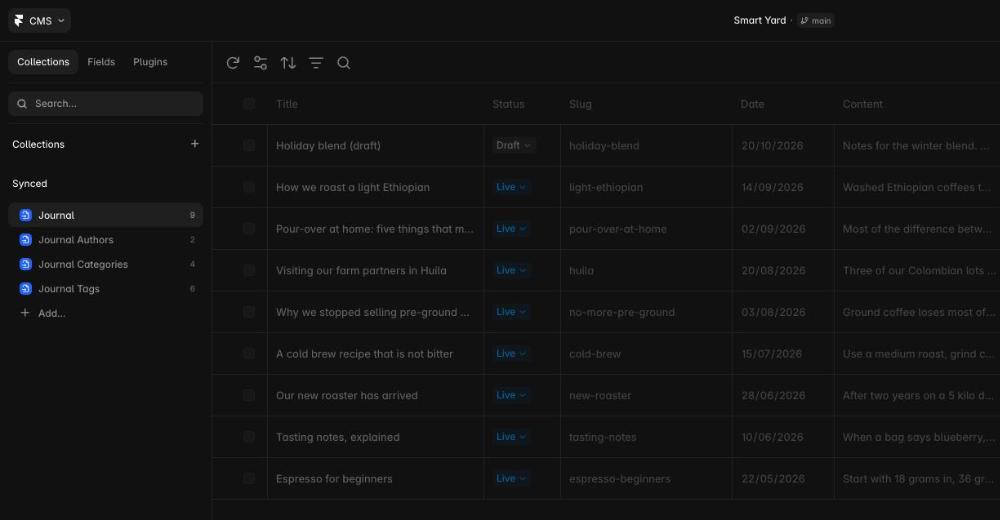
Both copy the post images into Framer, create linked Authors, Categories and Tags collections, and add redirects from the old URLs on Framer Pro or higher.
Keep your old links working
Whatever route you take, set up redirects before you point the domain at Framer. Squarespace post URLs often carry the date (/blog/2014/6/10/my-post), and your Framer post will live somewhere like /blog/my-post. Without a redirect, links from other sites and search results land on a 404.
Framer lets you add redirects under Site Settings, Hosting, Redirects on the Pro plan and higher, or a plugin can add them for you. Check them after publishing by opening a few old URLs.
A checklist
- Export each blog page from Squarespace, while the site is still live.
- Decide where the blog lives in Framer (
/blogis the usual choice). - Import posts and copy images into Framer.
- Add redirects from the old post URLs.
- Publish, test a few old URLs, then move the domain.
- Only then cancel Squarespace.
The Framer pricing link on this page is our referral link. If you start a new Framer account through it, Framer pays us a share of the first year; the price is the same for you.
Before you import, the free export inspector shows what’s in your export file: posts, drafts, images and old addresses. It reads the file in your browser and uploads nothing.
A template made for it
Back Issue is a magazine-style blog template we made around the fields Blog Import writes. Import with “2 collections, Blog and categories” and the home page, post pages and category pages fill in from your posts, and a post without a photo gets a cover set from its title. It runs on Framer Basic. $69 once, with a full refund within 14 days.
If the blog is mostly photographs, from weddings, elopements or portrait sessions, Second Shooter is our photo journal template: each story opens on a full-width cover and keeps every photo large in the text column. It runs on Framer Basic, $69 once.
Rather not do it yourself? Email us and we’ll see how we can help.