Framer is checking a new version of Blog Import, so its Marketplace page is offline for now. Need your blog moved before it's back? Email us and we'll help.
Moving a WordPress blog to Framer: export file, live site, and what breaks
WordPress gives you two ways to get your posts out. Which one you use changes what you get.
The short route: open Blog Import in the Framer Marketplace, our plugin that reads the WordPress export, copies the images and adds the redirects. Your newest 25 posts import free. The rest of this page explains each step.
Way 1: the export file
In the WordPress dashboard, open Tools, then Export, choose All content and download the .xml file. It holds every post, including drafts, with authors, categories and tags.
What the file does not hold is the post the way your readers see it. WordPress stores posts in a raw form and formats them each time a page is shown. We tested WordPress’s official theme test data, an export of 58 posts built to exercise formatting:
- 35 of the 58 posts had no paragraph tags. WordPress adds them when it shows the post. Imported as they are, each post becomes one block of text.
- Image captions, galleries and audio players are stored as shortcodes like
[caption]and[gallery]. Outside WordPress they show up as literal text. - 57 of the 58 had no excerpt; WordPress makes one up on the fly.
- The images aren’t in the file; it points to them in your WordPress media library.
Any import from the file has to do what WordPress does on display: add paragraphs, turn captions and galleries back into images, and write excerpts.
Way 2: the live site
If the site is still online, its REST API serves posts already formatted, at yoursite.com/wp-json/wp/v2/posts. No login is needed for published posts. Drafts are not included.
Two catches:
- Some hosts and security plugins turn the REST API off or block other sites from reading it. Then you’re back to the export file.
- Big blogs are slow to read in full. Reading make.wordpress.org/core (6,664 posts) one page of 100 at a time took us over five minutes. Reading several pages at once helps.
Your options in Framer
By hand. Fine for ten posts. Copy each into a Framer CMS collection, re-upload the images, and add redirects under Site Settings, Hosting, Redirects (Framer Pro plan or higher).
CSV. Framer’s own WordPress guide converts the export file to CSV with a tool or script, then imports the CSV into a collection. You get the raw content described above. Framer fetches the images from their WordPress addresses during the import, so the old site has to be online while you do it.
A plugin. Four on the Framer Marketplace:
- WP Sync by 19.studio connects to the live site and can sync again later. It handles custom post types and WooCommerce products, with field mapping. It imports images and media. Pages are not imported. It is free.
- Sillyweb WP Sync by Sillyweb connects to your WordPress site and imports posts, pages, custom post types, WooCommerce products, media and custom fields, and can sync again. Its listing calls it free and doesn’t mention authors, drafts or redirects.
- PostPort by Luke Sn reads the export file for $39 one-time. Every post arrives as a draft, authors and tags come in as text, and you pick image files from your computer to upload.
- Blog Import (ours) reads the export file or the live site. It brings drafts from the export file, turns authors, categories and tags into linked collections, copies images into Framer, and adds redirects on Framer Pro or higher. It is free for your newest 25 posts; a license for the rest is $29 per project or $59 for any number, paid once. It doesn’t do custom post types or WooCommerce.
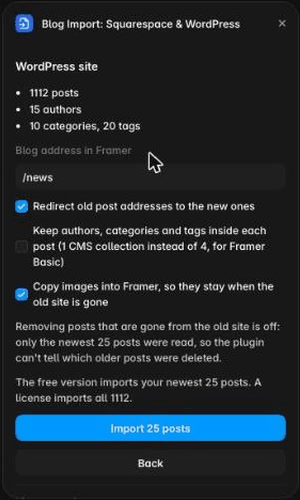
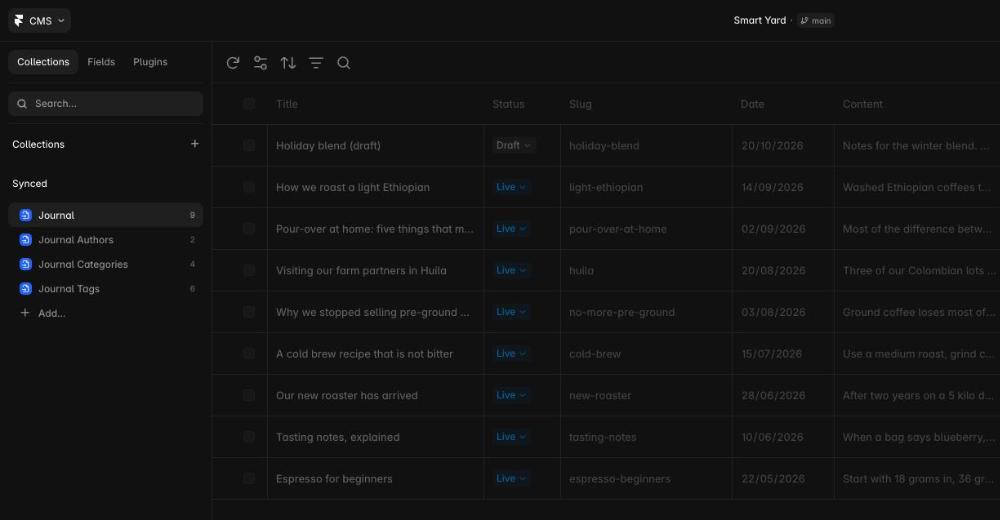
Pick by what you have. A site that keeps running, with custom post types, fits WP Sync or Sillyweb WP Sync, and both cost nothing. A blog you’re closing, where you want drafts, linked authors and categories, and redirects, fits a one-time import from the file.
Keep your old links working
WordPress URLs usually look like /2024/03/09/my-post/ or /my-post/, and your Framer post will live somewhere like /blog/my-post. Set up redirects before you move the domain, or links from other sites and search results land on a 404. Framer includes redirects on the Pro plan and higher.
Before you cancel hosting
- Export the file, even if you import from the live site. It’s your backup, and the only copy of your drafts.
- Import, and make sure images are copied into Framer, not linked to the old site.
- Add redirects, publish, and open a few old URLs to check them.
- Move the domain.
- Only then shut down WordPress.
The Framer pricing link on this page is our referral link. If you start a new Framer account through it, Framer pays us a share of the first year; the price is the same for you.
Before you import, the free export inspector shows what’s in your export file: posts, drafts, images and old addresses. It reads the file in your browser and uploads nothing. If you want a CSV for Framer’s CMS import instead, the free XML to CSV converter makes one the same way.
A template made for it
Back Issue is a magazine-style blog template we made around the fields Blog Import writes. Import with “2 collections, Blog and categories” and the home page, post pages and category pages fill in from your posts, and a post without a photo gets a cover set from its title. It runs on Framer Basic. $69 once, with a full refund within 14 days.
If the blog is mostly photographs, from weddings, elopements or portrait sessions, Second Shooter is our photo journal template: each story opens on a full-width cover and keeps every photo large in the text column. It runs on Framer Basic, $69 once.
Rather not do it yourself? Email us and we’ll see how we can help.